This article is to provide step by step instructions for making a Robot which is capable of converting image into the computer process able format, in the form of plain text using Raspberry Pi and a webcam server where we can live stream video over a local network. A software package used in this tutorial for camera interface is Motion which is an open source software with a number of configuration options which can be changed according to our needs. Here configurations are to be made so that it allows you to create a remote webcam which runs in Raspberry Pi, which will allow you to view from any computer on the local network for the control of robot in non-line of sight areas. Step by step instructions for the Optical character Recognition is discussed below.
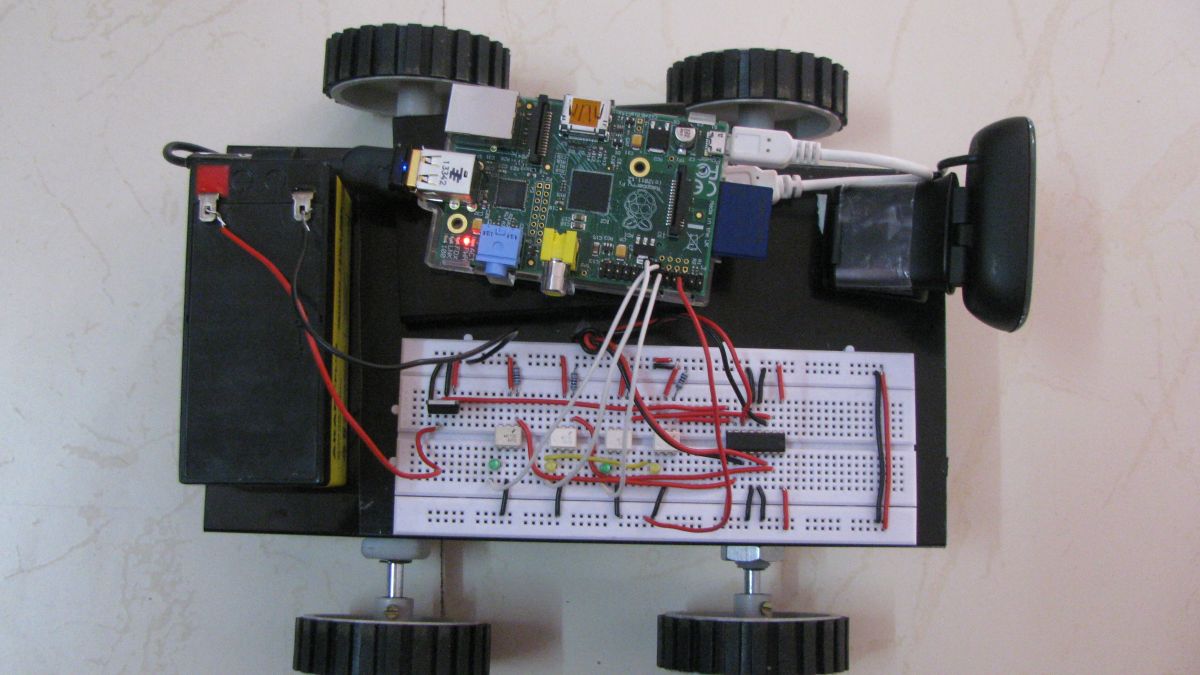
Prerequisites & Equipment:
You will need the following:
-
A Raspberry Pi Model B or greater.
-
A USB WiFi Adapter (Edimax – Wireless 802.11b/g/n nano USB adapter is used here).
-
A USB webcam with microphone / USB microphone (Logitech USB Webcam is used here).
-
Robotic Accessories (wheels, motors, chassis and motor driving circuits)
-
An SD Card flashed with the Raspbian OS (Here is a guide if you need)
-
Access to the Raspberry either via a keyboard and a monitor or remotely.
In this project, our ultimate goal is to find and solve the different requirements in making a web controlled robot that recognizes and converts textual messages placed in real world to the computer readable text files. Our objective is to integrate the appropriate techniques to explain and prove that such capability, using their limited hardware and software capabilities and not to develop new character recognition algorithms or hardware for doing that. The objective of our work is to provide an internet controlled mobile robot with the capability of reading characters in the image and gives out strings of characters. Our approach requires following techniques:
-
User interface web control for robotic movement – By utilizing PHP and Java scripts.
-
Webcam server to Livestream the videos – Using Motion Software package.
-
Camera snapshot control – using python script.
-
Optical Character Recognition for the image to text conversion.
User interface web control for robotic movements:
The user interface for the control of motors which control the movement of the robot is done using the same technique used in Home automation using Raspberry Pi. Java script is used in the creation of Graphical user interface and PHP used to communicate between the GUI and Raspberry Pi’s GPIO. All the technicalities included in this is well discussed in that article.
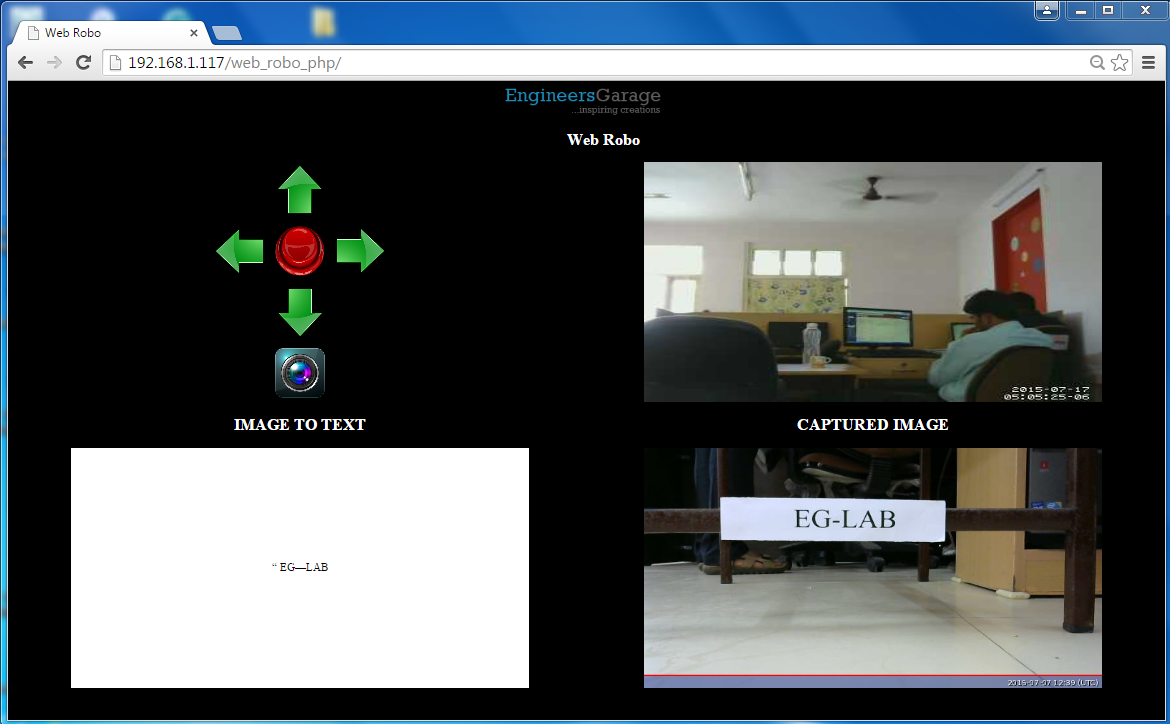
Fig. 2: GUI Of Web Control Interface In Raspberry Pi Using Java Script And Php
The above picture is the GUI of the web control interface, it has 4 blocks which are Control block,live stream block, text output block and captured image block. Control block includes four direction switches and a stop switch. The live stream block is used to drive the robot in the non-line of sight areas. The last captured image is shown in the next block. And finally the text output, which can be used digitally is given in the last block.
Webcam server to Livestream the videos:
Creating a live stream server with Raspberry Pi is discussed in the previous article in a detailed manner. Here we have to include that server with the newly created interface for the robot this can be done by including the video url in the index.php file which is created for the server which is explained in the previous article.
Installing the Optical Character Recognition (OCR) Engine:Disha Karnataki
The OCR engine converts the image file we take in the real time into the text file. We are using Tesseract OCR Engine. It is compatible with Raspberry Pi and it does not require an online connection to convert images to text.
First, install tesseract type the following command:
sudo apt-get install tesseract-ocr
Next, test the OCR engine.
Select a good image which has a piece of text and test run tesseract on it by following command:
tesseract image.jpg o
Where, image.jpg is the image taken by the Raspberry Pi camera for the test purpose and o is the file in which the output text will be saved in text format, Tesseract will make it o.txt so no need to add the extension. Now, you have to wait for few minutes, the OCR takes a lot of processing power. When it is done processing, open o.txt. If the OCR did not detect any text, try rotating the image and running the tesseract again.
Setting up python code for OCR functions:
OCR includes a series of steps which are to be executed one by one which makes difficult to do with PHP codings, so we are choosing the python script with a web server which is capable of doing all the functions with one click in PHP web server. Python script can be written to handle system commands and read the shell output by the system function by importing the OS library. Copy the camera_python coding folder to the home folder of the Raspberry Pi and run the command using the following command.(Ensure camera is connected to the USB port of Raspberry Pi. This python script includes following actions.
-
Stopping of motion service(live stream).
-
Taking a snapshot.
-
Running OCR engine.
-
Starting the motion service.
As our apache server will be auto started after every reboot. The pending work is to auto start python script after every reboot. Making the python script to run at startup is well explained in this article.
Making all together:
STEP 1:Each distinct part of the robot is completed it’s time to integrate them to work as a whole part. First is to start Apache server which is discussed in previous articles. Download the OCR_Robo coding files, extract and place them in the apache web server folder which is /var/www and check for the availability of web server. Note: There are Different techniques discussed in the previous articles to know the IP address. Go through each and every line of all the coding files and make changes in the field of IP address to your own IP address.
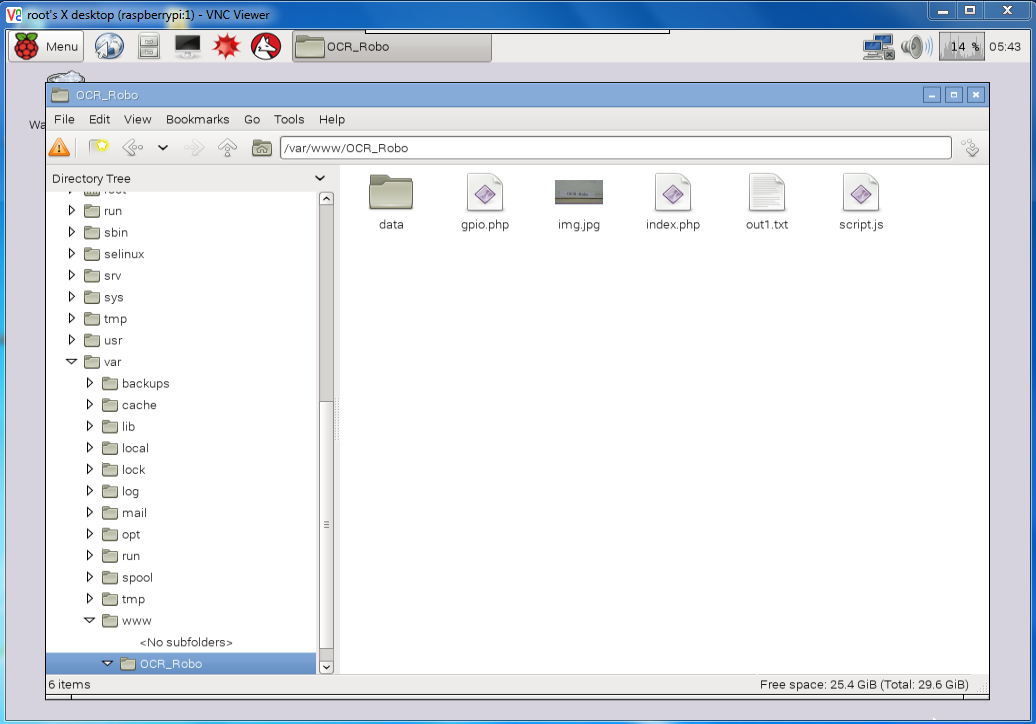
Fig. 3: OCR_Robo Coding Files
STEP 2: Download the Camera_python coding files and place them in the home folder of the Raspberry Pi. Create a file named launcher.sh using following command.
Sudo nano launcher.sh
And enter the following code as shown in the image:
#!/bin/sh
cd /
cd home/pi/camera_python
sudo python camera.py
cd /
And make it executable and capable of starting at the boot by the steps given in the previous article.
STEP 3: Make the connections according to the circuit diagram. Optocouplers are used to safeguard the Raspberry Pi from overvoltage risks.
Now the robot which can be controlled by web interfaces and capable of Optical Character Recognition is ready.
Circuit Diagrams

Project Video
Filed Under: Raspberry pi
Filed Under: Raspberry pi
Questions related to this article?
👉Ask and discuss on EDAboard.com and Electro-Tech-Online.com forums.
Tell Us What You Think!!
You must be logged in to post a comment.