In the previous tutorial, Zigbee technology and its application in building Wireless Sensor Networks was discussed. In this tutorial, learn to perform simple Client to Client Communication over Zigbee Protocol. There will be two Xbee modules taken and will be configured to communicate data with each other over the air.
The Xbee devices communicate with each other wirelessly over the air. They do not have any microcontroller or processor in themselves, so they cannot manage the received or sent data. They can simply transfer the information what they receive. But they can be interfaced with other microcontrollers and processors like Arduino, Raspberry Pi or PC via serial Interface.
So, basically, Xbee modules are capable of two types of communication – wireless communication and serial communication. The wireless communication takes place between Xbee devices so that the devices act as radio frequency (RF) devices. For data to transmit and receive from one Xbee module to another, both devices should be on same network. The data between two devices is transmitted wirelessly. By serial communication (UART), the Xbee modules can communicate with microcontrollers and processors.
A microcontroller, processor or PC can send data through the serial interface to the Xbee module (transmitter) and the Xbee module wirelessly transmits the data to other Xbee module (Receiver). The receiver Xbee module transmits the data through the serial interface to controller, processor or PC to which it is interfaced. The controller interfaced to the Xbee module processes the information received by the Xbee devices. This way, controllers can monitor and control remote devices by sending messages through the local Xbee modules.
The Xbee modules communicate with each other in two modes – Transparent mode and API (Application Peripheral Interface) mode. This project is based on Transparent mode. In transparent mode, Xbee modules act as serial line replacement. All data received through serial input is immediately transmitted over the air. When other Xbee module receives data wirelessly, it sends that exactly as it receives through the serial interface and vice versa. Contrary to this, in the API mode, the data is transmitted with some additional information.
In this project, two Xbee modules will be interfaced with two PCs and they will be configured to communicate data with each other in transparent mode. The XCTU software can be used on the PCs to send and receive data between the PCs and the Xbee modules.
Component Required –
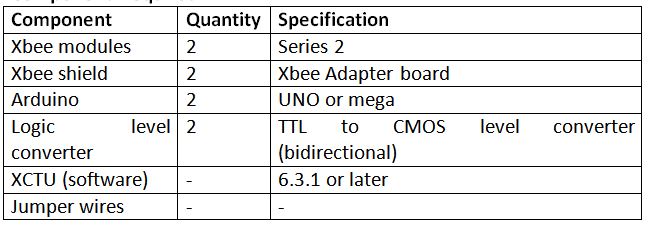
Fig. 1: List of components required for Zigbee based PC to PC communication using Xbee and XCTU
Software Required –
• XCTU (6.3.1 or later) or XCTU legacy
Block Diagram –
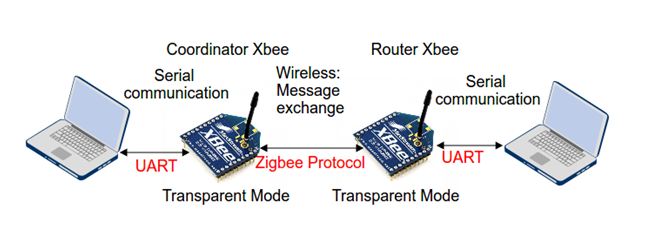
Fig. 2: Block Diagram of Zigbee based PC to PC communication using Xbee and XCTU
Circuit Connections –
The Xbee Series 2 modules will be used in this project. The X-Bee module is a 20-pin module with the following pin configuration –
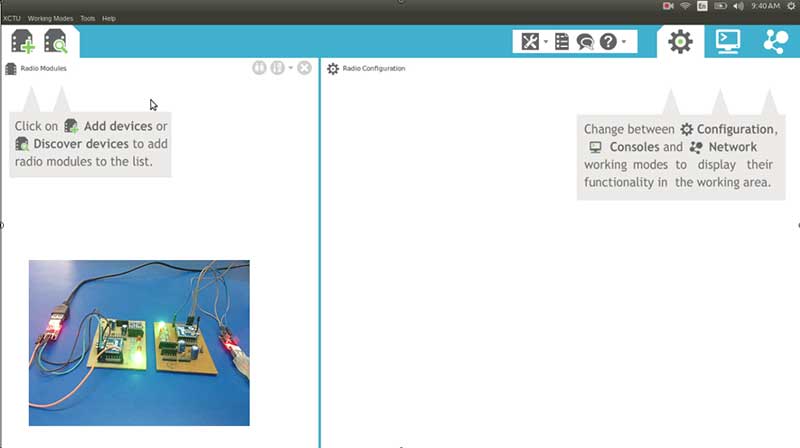
Fig. 3: Screenshot of Xeebee Module Configration on XCTU Software
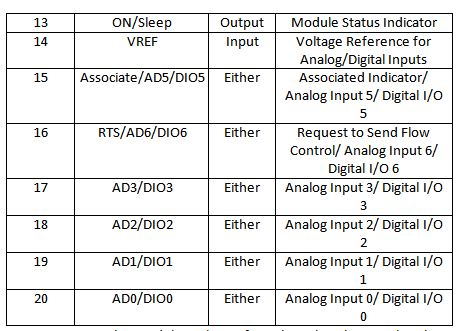
Fig. 4: Table listing pin configuration of Xbee Series 2 Module
For connecting the module with PC, first place the Xbee to the Xbee Shield and connect module with an Arduino. The Arduino UNO or Arduino Mega acts as a USB converter for Xbee modules. Before using Arduino UNO with Xbee modules, a bare minimum sketch must be uploaded on it or the Atmega microcontroller must be removed from the board. The Xbee module can be provided power by an external power supply or from the Arduino. The Xbee module and the Arduino board must communicate serially. The Xbee module should be connected to the Arduino according to the following table –
Fig. 5: Table listing circuit connections between Arduino and Xbee Series 2 Module
Now Arduino can be connected with the PC using a USB cable.
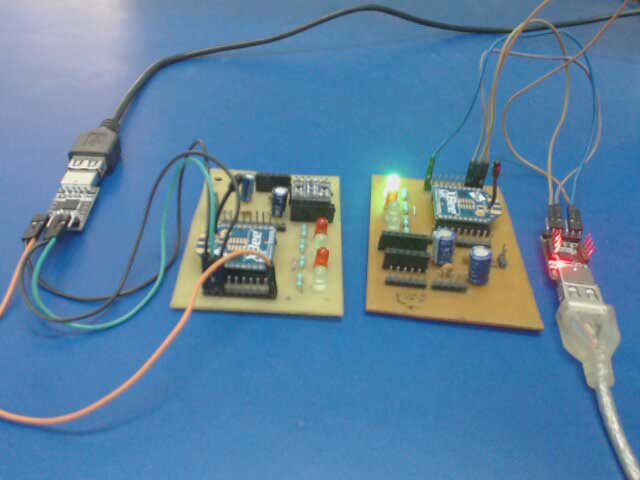
Fig. 6: Prototype of Xbee Series 2 Module and PC Interfacing
After connecting the module to the computer, perform the following steps –
1) Open the XCTU software. Make sure, the software is in configuration working mode.
2) Click on “Discover Radio Modules”.
3) Click on the desired COM port on which module is connected.
4) Click next, in the ‘Set port parameters’ window, change the values according to the requirements and click finish.
5) As XCTU locates radio modules after full scan, select the radio modules by clicking on ‘Add selected devices’. Now, the selected radio modules should show in radio module window.
In order to transmit or receive data on Xbee modules, they need to be properly configured on the same network. According to the Zigbee protocol one device needs to be in coordinator mode and the rest can be router or end devices. In this case, one device is coordinator and other is router.
Fig. 7: Screenshot of Xbee Module Configuration on XCTU Software
Now, restore the default setting of all Xbee modules with the ‘Load default firmware setting’ button at the top of Radio configuration section and use XCTU to configure the following parameter –
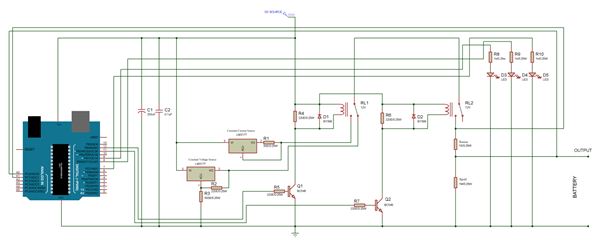
Fig. 8: Table listing configuration parameters of Xbee Module
Keep the rest of the values as default and write the settings of all Xbee modules with the ‘write radio modules’ button at the top of radio configuration. Once the configuration is completed, click on the discover radio modules on same network button of any of the radio module. Now, the radio modules for the same network can be found. After configuring both modules, the data can be sent and received among them.
The following precautions must be taken care while interfacing the Xbee modules –
1) Xbee modules operate on 3V3 with current of 40 mA to transmit and receive the data. Don’t provide 5V from Arduino.
2) Xbee modules have 3V3 tolerant signal level. For providing communication between arduino and Xbee, use CMOS-to-TTL logic level converter (Bidirectional).
3) Sometimes when trying to discover Xbee, there may occur an error like – ‘Could not find any device in port COM6 >For input string: “ERROR” or error initializing device parameter = connection timeout or could not find device parameter’ then the error may be because of the incorrect baud rate.
For this, connect the modem using FTDI cable to the PC, open XCTU, select the COM port and multiple baud rates like 9600, 115200, 57600 then search for the radio module and possibly there the radio module can be found. But if not found, then open XCTU legacy (old version), select the possible baud rate and in the modem configuration window select the correct modem firmware/ function set, then enable ‘always update firmware’ and select write. After that, when the info box (action required) appears, then reset the Xbee by connecting RST to GND or simply unseat the Xbee and again place on seat. Now info box will disappear. It will then re-flash the radio modules automatically.
4) If there comes the error of baud rate difference then the error can be that the PC and radio module are not working on same baud rate. In such case, try to change the PC and flash the firmware with another PC. The Xbee module can also be recovered this way.
5) Issue the commands properly when working in AT mode.
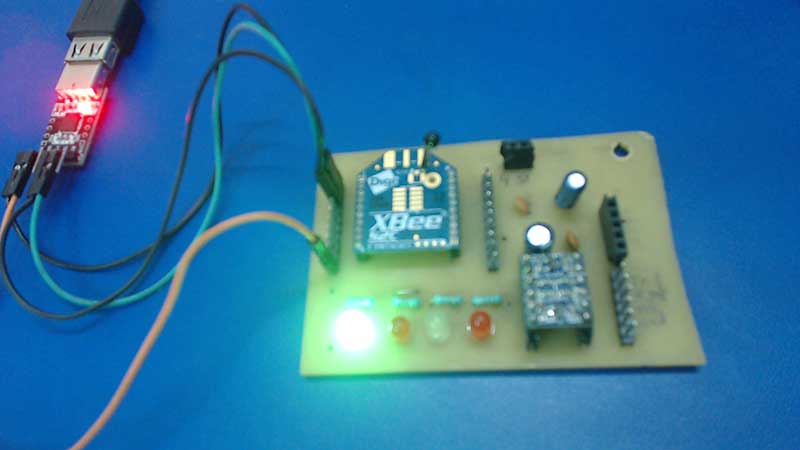
Fig. 9: Image showing Zigbee communication between Xbee Modules
How the Circuit Works –
The XCTU console mode is used to provide communication between the two Xbee modules in serial communication mode. In XCTU, click the open serial connection button to start the communication. The background changes to green to indicate that the connection is open. Use the console log section to type the messages on one Xbee. It can be seen that the message is received by other Xbee which is connected in the same network.
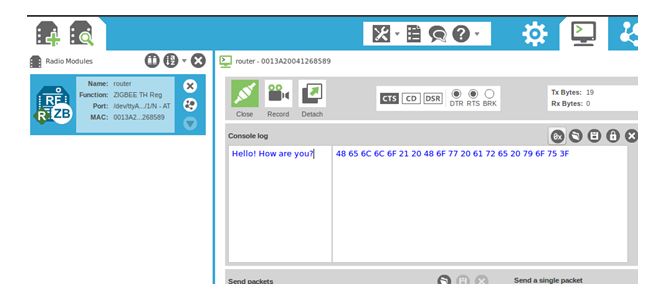
Fig. 10: Screenshot of Console Log of XCTU Software showing messages communicated between Xbee Modules
The serial console transmits the exact same message to the Xbee modules what it received from them. This way, messages can be communicated between two PCs over Zigbee protocol using Xbee modules and XCTU software.
In the next tutorial, learn to setup IoT communication between two Arduino based devices using Xbee modules.
Project Video
Filed Under: IoT tutorials, Tutorials
Filed Under: IoT tutorials, Tutorials
Questions related to this article?
👉Ask and discuss on Electro-Tech-Online.com and EDAboard.com forums.
Tell Us What You Think!!
You must be logged in to post a comment.