Engineers Garage

  • Electronic Projects & Tutorials
    • Electronic Projects
      • Arduino Projects
      • AVR
      • Raspberry pi
      • ESP8266
      • BeagleBone
      • 8051 Microcontroller
      • ARM
      • PIC Microcontroller
      • STM32
    • Tutorials
      • Audio Electronics
      • Battery Management
      • Brainwave
      • Electric Vehicles
      • EMI/EMC/RFI
      • Hardware Filters
      • IoT tutorials
      • Power Tutorials
      • Python
      • Sensors
      • USB
      • VHDL
    • Circuit Design
    • Project Videos
    • Components
  • Articles
    • Tech Articles
    • Insight
    • Invention Stories
    • How to
    • What Is
  • News
    • Electronic Product News
    • Business News
    • Company/Start-up News
    • DIY Reviews
    • Guest Post
  • Forums
    • EDABoard.com
    • Electro-Tech-Online
    • EG Forum Archive
  • DigiKey Store
    • Cables, Wires
    • Connectors, Interconnect
    • Discrete
    • Electromechanical
    • Embedded Computers
    • Enclosures, Hardware, Office
    • Integrated Circuits (ICs)
    • Isolators
    • LED/Optoelectronics
    • Passive
    • Power, Circuit Protection
    • Programmers
    • RF, Wireless
    • Semiconductors
    • Sensors, Transducers
    • Test Products
    • Tools
  • Learn
    • eBooks/Tech Tips
    • Design Guides
    • Learning Center
    • Tech Toolboxes
    • Webinars & Digital Events
  • Resources
    • Digital Issues
    • EE Training Days
    • LEAP Awards
    • Podcasts
    • Webinars / Digital Events
    • White Papers
    • Engineering Diversity & Inclusion
    • DesignFast
  • Guest Post Guidelines
  • Advertise
  • Subscribe

Sensor value display on TFT LCD using Arduino: Part I

By Ashutosh Bhatt June 19, 2024

Displaying potentiometer value and temperature using LM35
In my previous tutorial series on displaying sensor data (value) on OLED display, I have explained how to display values of different sensors like a potentiometer, LM35, soil moisture sensor, DHT, HC SR04, etc. on a tiny 1” OLED display. This time, I will demonstrate and explain how to display various sensor values on a multicolor TFT LCD screen.

TFT LCDs are very widely used attractive displays that can display TEXT, digits, numbers, figures, images, graphics, etc. They are available in different sizes such as:

  • Small – 1.4”, 1.8”, 2.4”
  • Medium – 2.8”, 3.2”, 3.5”
  • Big – 5”, 7”

Most of these TFT LCDs work on SPI protocol. All these TFT LCDs can be easily interfaced with Arduino because Arduino has SPI pins (MOSI, MISO, SCK). In Arduino IDE, there is also a TFT library.

Displaying sensor data on a TFT LCD looks very attractive because it has 64K to 256K colors.  Also, it is possible to show colorful TEXT or image animation on this TFT LCD using Arduino. Here, I am using a 1.8” TFT LCD with 128×160 pixels, as shown in the figure. It works on SPI protocol and has eight pins for interfacing with Arduino.

NO PIX

Let’s start with a straightforward analog sensor—potentiometer (POT). I will show you how to display the POT value on TFT LCD. The circuit diagram is followed by its connections, working, and operation.

Circuit diagram
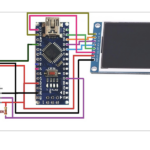
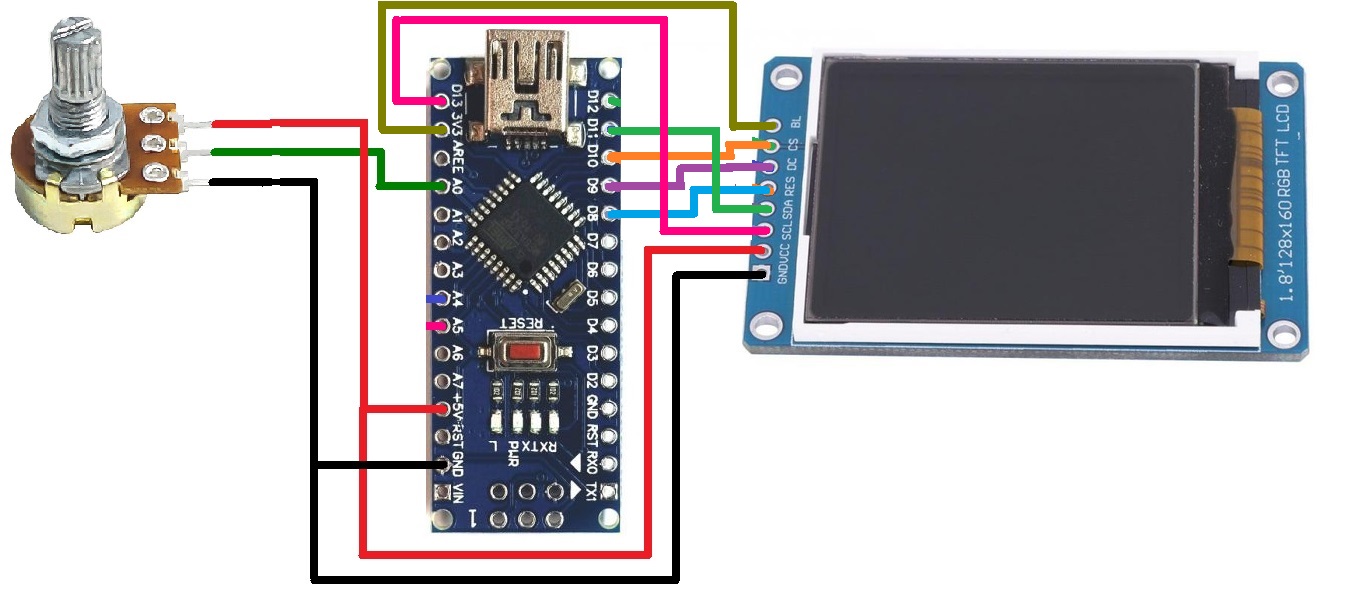
The figure shows that the circuit consists of only three components—POT (potentiometer), Arduino NANO board, and 1.8” TFT LCD.
Circuit connections
The potentiometer has three terminals. The two end terminals are connected with +5V and GND pins of the Arduino board, as shown. The middle-slider terminal is connected with analog input pin A0. Thus, rotating POT’s analog input voltage at pin A0 varies from 0 to 5V.

The TFT LCD has a total of eight pins. It works on SPI protocol, so its pins are connected with the SPI pins of the Arduino board.
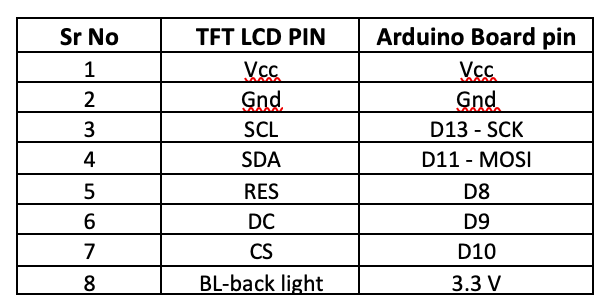
The Arduino 5V supply output directly powers the circuit. Since the Arduino is powered by the computer’s USB port (PC / laptop), there is no need for any external power supply.

Circuit operation
The POT is used to vary the analog voltage from 0 to 5V. This analog voltage is given to Arduino pin A0 as input. Arduino reads this analog voltage and converts it into a digital value between 0 to 1023. It is first converted into a string and then into an array of characters because TFT LCD can only display characters. The value is displayed as characters on TFT LCD.  Arduino has a TFT library “TFT.h” that is used here along with other two libraries, “SPI.h” and “wire.h”.

The Arduino TFT library has direct functions to display TEXT, graphics, and images in various colors on the TFT LCD. Since the TFT LCD works on SPI, we need an SPI library and wire library to communicate.Below is the software program in Arduino IDE for displaying POT value on TFT LCD


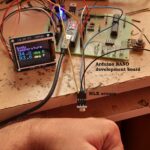
Here is the snap of circuit arrangement with pot value displayed on the TFT LCD screen.
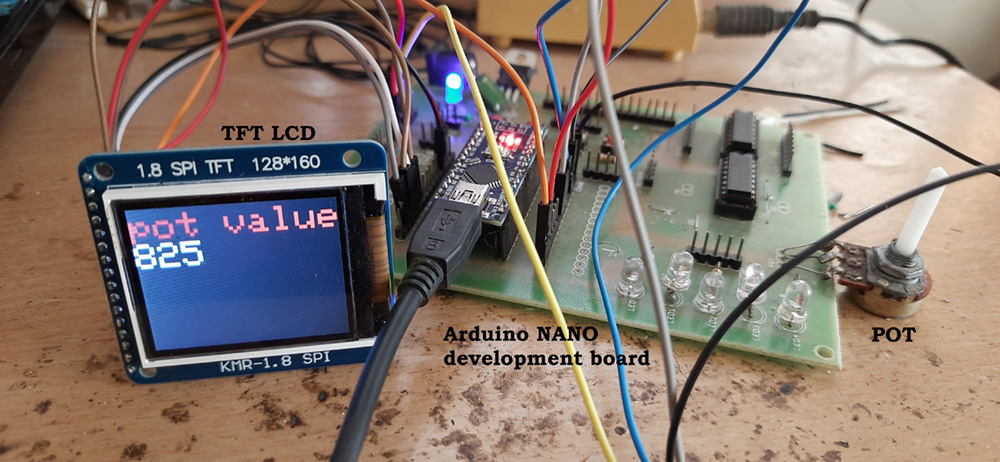
Now we can connect any analog sensor with Arduino and display its data on TFT LCD.

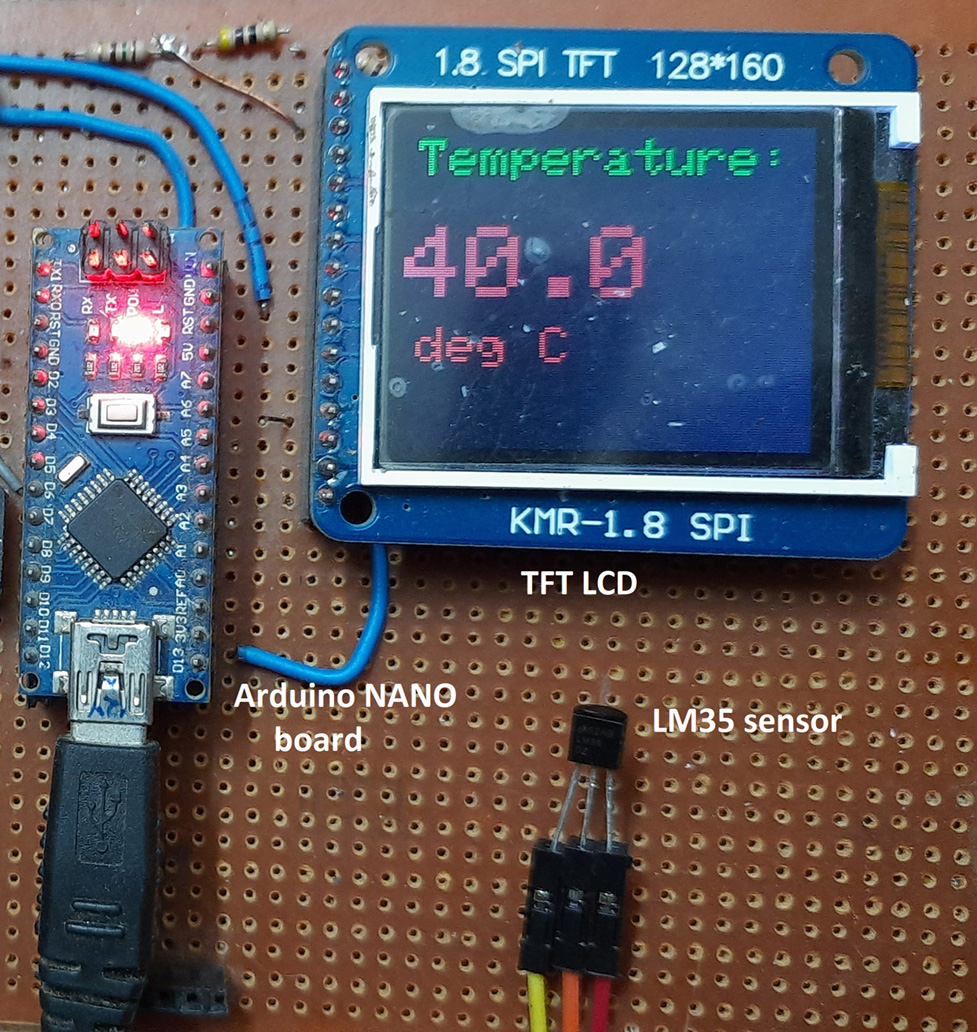
I will replace the POT with a widely-used and accurate temperature sensor, the LM35. It gives analog output voltage as ten mV/oC. Now, I will show you how to measure accurate room temperature and display it on TFT LCD. First, see the circuit diagram below.

Circuit diagram
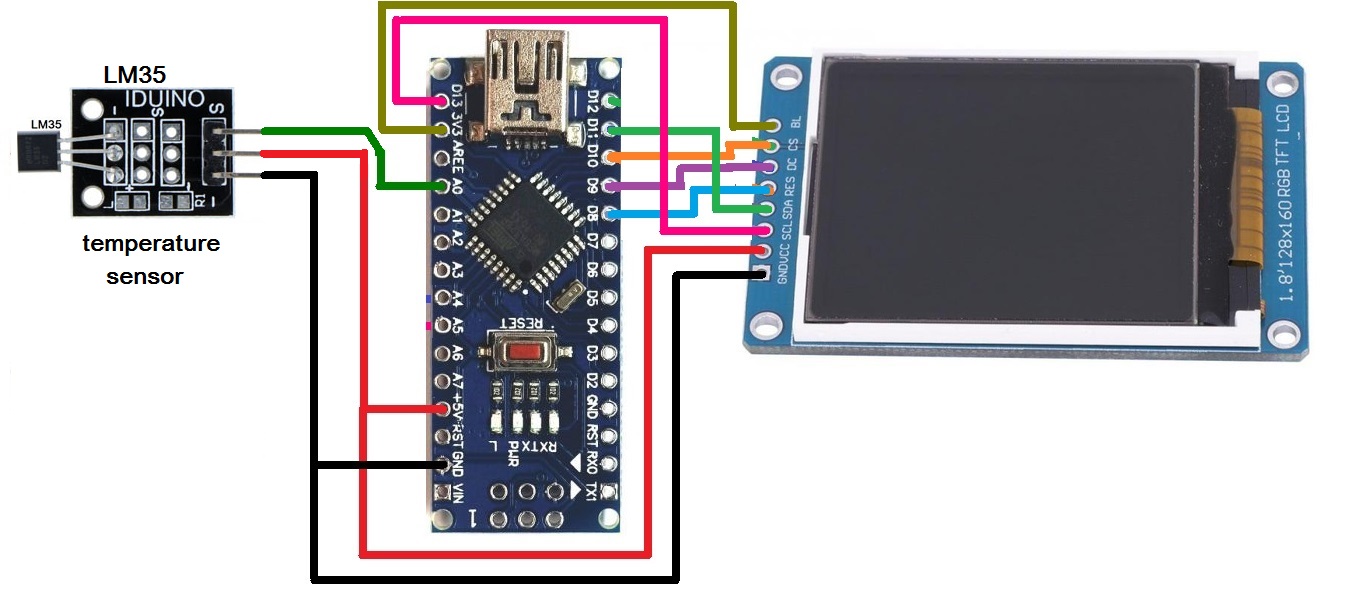
As shown in the circuit, I have replaced the LM35 sensor module in place of the POT.

The LM35 temperature sensor module also has three pins (terminals) (1) +V (2) G(-) and (3) S (signal). +V and G(-) are connected to +5V and GND of the Arduino board. S (signal) is the sensor’s analog output and is connected to analog input pin A0 of Arduino.

Circuit operation
The LM35 sensor sense room temperature and gives analog voltage output from 0 to 1V. This analog voltage is given to Arduino pin A0 as input. Arduino reads this analog voltage and converts it into a digital value between 0 to 1023. This value is multiplied by a factor of 0.488* to get the exact room temperature value. This value is the float number. It is first converted into a string and further into an array of characters because TFT LCD can only display characters.

We will now display this temperature reading on TFT. It is handled again similarly by TFT library functions. Here is the program code to display room temperature on TFT LCD

Here is the snap of circuit arrangement with pot value displayed on the TFT LCD screen.
 

In the next article of this tutorial series, I will demonstrate how to display temperature, humidity, and soil moisture content on a TFT LCD using the DHT11 and soil moisture sensor.


*Note – detailed explanation is given in the program code

You may also like:

  • low power design
    How to optimize Arduino for low power design

  • Sensor value (data) display on TFT LCD using Arduino –…

  • How to display sensor values on a TFT LCD using…

  • How to design a smart, contactless temperature-measurement gun

  • How to use a DHT sensor to show humidity and…

Filed Under: Arduino Projects, Electronic Projects, Featured Contributions
Tagged With: Arduino
 

Next Article

← Previous Article
Next Article →

Questions related to this article?
👉Ask and discuss on Electro-Tech-Online.com and EDAboard.com forums.


Tell Us What You Think!! Cancel reply

You must be logged in to post a comment.

EE TECH TOOLBOX

“ee
Tech Toolbox: Internet of Things
Explore practical strategies for minimizing attack surfaces, managing memory efficiently, and securing firmware. Download now to ensure your IoT implementations remain secure, efficient, and future-ready.

EE Learning Center

EE Learning Center
“engineers
EXPAND YOUR KNOWLEDGE AND STAY CONNECTED
Get the latest info on technologies, tools and strategies for EE professionals.

HAVE A QUESTION?

Have a technical question about an article or other engineering questions? Check out our engineering forums EDABoard.com and Electro-Tech-Online.com where you can get those questions asked and answered by your peers!


RSS EDABOARD.com Discussions

  • Reducing "shoot-through" in offline Full Bridge SMPS?
  • High Side current sensing
  • How to simulate power electronics converter in PSpice?
  • Voltage mode pushpull is a nonsense SMPS?
  • Layout IRN reduction in Comparator

RSS Electro-Tech-Online.com Discussions

  • Back to the old BASIC days
  • Parts required for a personal project
  • PIC KIT 3 not able to program dsPIC
  • Failure of polypropylene motor-run capacitors
  • Siemens large industrial PLC parts

Featured – RPi Python Programming (27 Part)

  • RPi Python Programming 21: The SIM900A AT commands
  • RPi Python Programming 22: Calls & SMS using a SIM900A GSM-GPRS modem
  • RPi Python Programming 23: Interfacing a NEO-6MV2 GPS module with Raspberry Pi
  • RPi Python Programming 24: I2C explained
  • RPi Python Programming 25 – Synchronous serial communication in Raspberry Pi using I2C protocol
  • RPi Python Programming 26 – Interfacing ADXL345 accelerometer sensor with Raspberry Pi

Recent Articles

  • What is AWS IoT Core and when should you use it?
  • AC-DC power supply extends voltage range to 800 V DC
  • Infineon’s inductive sensor integrates coil system driver, signal conditioning circuits and DSP
  • Arm Cortex-M23 MCU delivers 87.5 µA/MHz active mode
  • STMicroelectronics releases automotive amplifiers with in-play open-load detection

EE ENGINEERING TRAINING DAYS

engineering

Submit a Guest Post

submit a guest post
Engineers Garage
  • Analog IC TIps
  • Connector Tips
  • Battery Power Tips
  • DesignFast
  • EDABoard Forums
  • EE World Online
  • Electro-Tech-Online Forums
  • EV Engineering
  • Microcontroller Tips
  • Power Electronic Tips
  • Sensor Tips
  • Test and Measurement Tips
  • 5G Technology World
  • Subscribe to our newsletter
  • About Us
  • Contact Us
  • Advertise

Copyright © 2025 WTWH Media LLC. All Rights Reserved. The material on this site may not be reproduced, distributed, transmitted, cached or otherwise used, except with the prior written permission of WTWH Media
Privacy Policy

Search Engineers Garage

  • Electronic Projects & Tutorials
    • Electronic Projects
      • Arduino Projects
      • AVR
      • Raspberry pi
      • ESP8266
      • BeagleBone
      • 8051 Microcontroller
      • ARM
      • PIC Microcontroller
      • STM32
    • Tutorials
      • Audio Electronics
      • Battery Management
      • Brainwave
      • Electric Vehicles
      • EMI/EMC/RFI
      • Hardware Filters
      • IoT tutorials
      • Power Tutorials
      • Python
      • Sensors
      • USB
      • VHDL
    • Circuit Design
    • Project Videos
    • Components
  • Articles
    • Tech Articles
    • Insight
    • Invention Stories
    • How to
    • What Is
  • News
    • Electronic Product News
    • Business News
    • Company/Start-up News
    • DIY Reviews
    • Guest Post
  • Forums
    • EDABoard.com
    • Electro-Tech-Online
    • EG Forum Archive
  • DigiKey Store
    • Cables, Wires
    • Connectors, Interconnect
    • Discrete
    • Electromechanical
    • Embedded Computers
    • Enclosures, Hardware, Office
    • Integrated Circuits (ICs)
    • Isolators
    • LED/Optoelectronics
    • Passive
    • Power, Circuit Protection
    • Programmers
    • RF, Wireless
    • Semiconductors
    • Sensors, Transducers
    • Test Products
    • Tools
  • Learn
    • eBooks/Tech Tips
    • Design Guides
    • Learning Center
    • Tech Toolboxes
    • Webinars & Digital Events
  • Resources
    • Digital Issues
    • EE Training Days
    • LEAP Awards
    • Podcasts
    • Webinars / Digital Events
    • White Papers
    • Engineering Diversity & Inclusion
    • DesignFast
  • Guest Post Guidelines
  • Advertise
  • Subscribe