Engineers Garage

  • Electronic Projects & Tutorials
    • Electronic Projects
      • Arduino Projects
      • AVR
      • Raspberry pi
      • ESP8266
      • BeagleBone
      • 8051 Microcontroller
      • ARM
      • PIC Microcontroller
      • STM32
    • Tutorials
      • Audio Electronics
      • Battery Management
      • Brainwave
      • Electric Vehicles
      • EMI/EMC/RFI
      • Hardware Filters
      • IoT tutorials
      • Power Tutorials
      • Python
      • Sensors
      • USB
      • VHDL
    • Circuit Design
    • Project Videos
    • Components
  • Articles
    • Tech Articles
    • Insight
    • Invention Stories
    • How to
    • What Is
  • News
    • Electronic Product News
    • Business News
    • Company/Start-up News
    • DIY Reviews
    • Guest Post
  • Forums
    • EDABoard.com
    • Electro-Tech-Online
    • EG Forum Archive
  • DigiKey Store
    • Cables, Wires
    • Connectors, Interconnect
    • Discrete
    • Electromechanical
    • Embedded Computers
    • Enclosures, Hardware, Office
    • Integrated Circuits (ICs)
    • Isolators
    • LED/Optoelectronics
    • Passive
    • Power, Circuit Protection
    • Programmers
    • RF, Wireless
    • Semiconductors
    • Sensors, Transducers
    • Test Products
    • Tools
  • Learn
    • eBooks/Tech Tips
    • Design Guides
    • Learning Center
    • Tech Toolboxes
    • Webinars & Digital Events
  • Resources
    • Digital Issues
    • EE Training Days
    • LEAP Awards
    • Podcasts
    • Webinars / Digital Events
    • White Papers
    • Engineering Diversity & Inclusion
    • DesignFast
  • Guest Post Guidelines
  • Advertise
  • Subscribe

How to capture images using ESP32-CAM and an SD card

By Nikhil Agnihotri January 7, 2025

The ESP32-CAM is a widely used development board for embedded vision applications. It combines the ESP32 microcontroller with an OV2620 camera module, and the ESP32 itself comes with built-in Wi-Fi and Bluetooth capabilities. Previously, we created a video streaming server using the ESP32-CAM to troubleshoot potential operational issues with the module.

In this project, we’ll program the ESP32-CAM to capture still images and store them on a MicroSD card. The module will capture live images whenever the reset button is pressed, offering a simple yet effective solution for capturing images.

Components

  1. ESP32-CAM x1
  2. Arduino UNO or MEGA x1
  3. USB cable (to connect Arduino with your computer)
  4. Jumper wires

Circuit connections

In this project, we use Arduino to upload a sketch to the ESP32-CAM. However, Arduino UNO or MEGA also work.

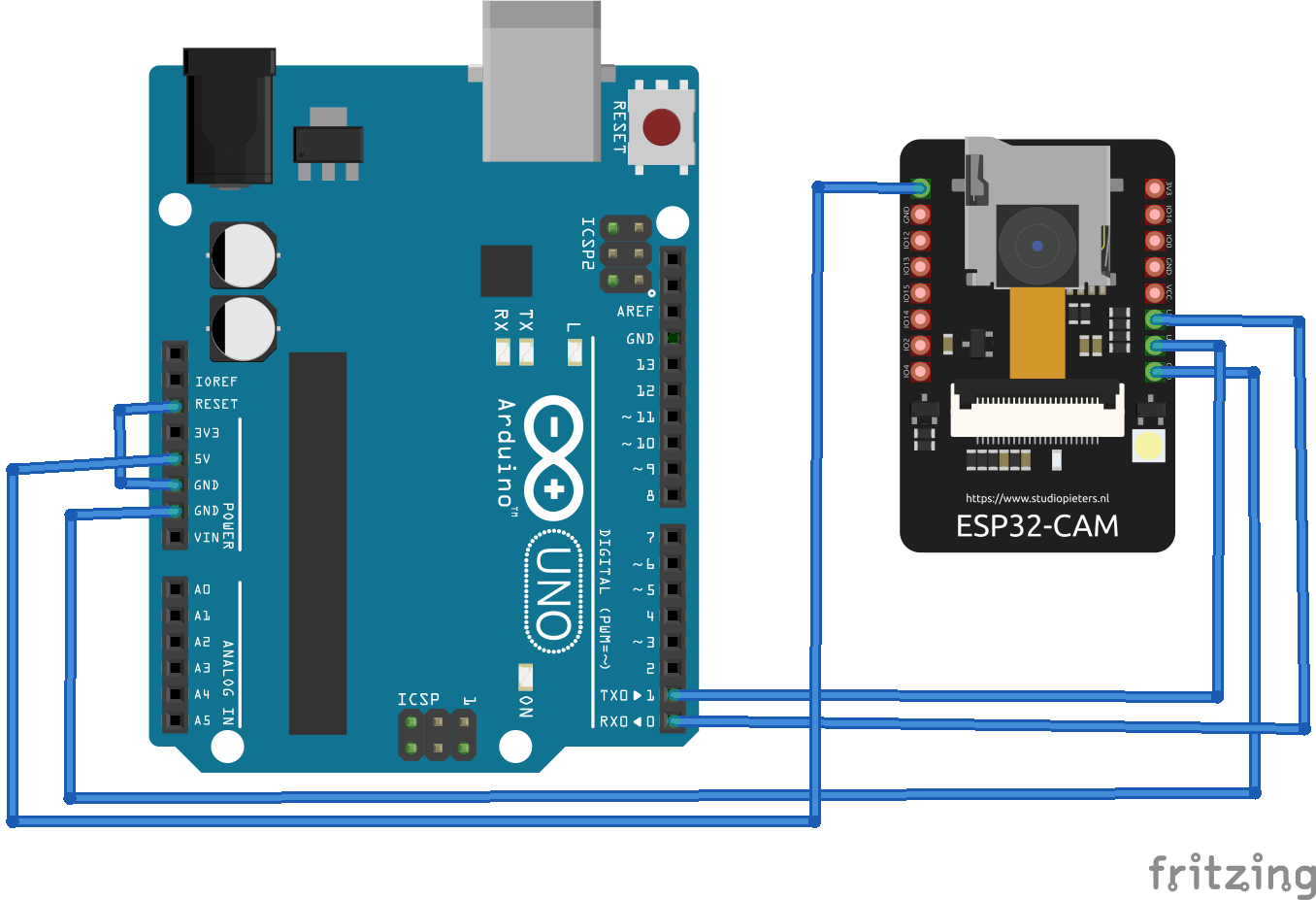
Begin by connecting ESP32-CAM’s GPIO1 (U0_TXD) and GPIO3 (U0_RXD) pins to Arduino’s TX and RX pins, respectively. Next, connect ESP32-CAM’s 5V and ground pins to Arduino’s 5V and GND pins. Also, connect Arduino’s RESET pin to its ground pin.

While uploading the sketch, ensure that ESP32-CAM’s GPIO0 pin is connected to its ground pin. After successfully uploading the sketch, be sure to remove the connection between ESP32-CAM’s GPIO0 and ground.

Below is the circuit diagram illustrating the connections between Arduino and the ESP32-CAM for uploading the sketch.
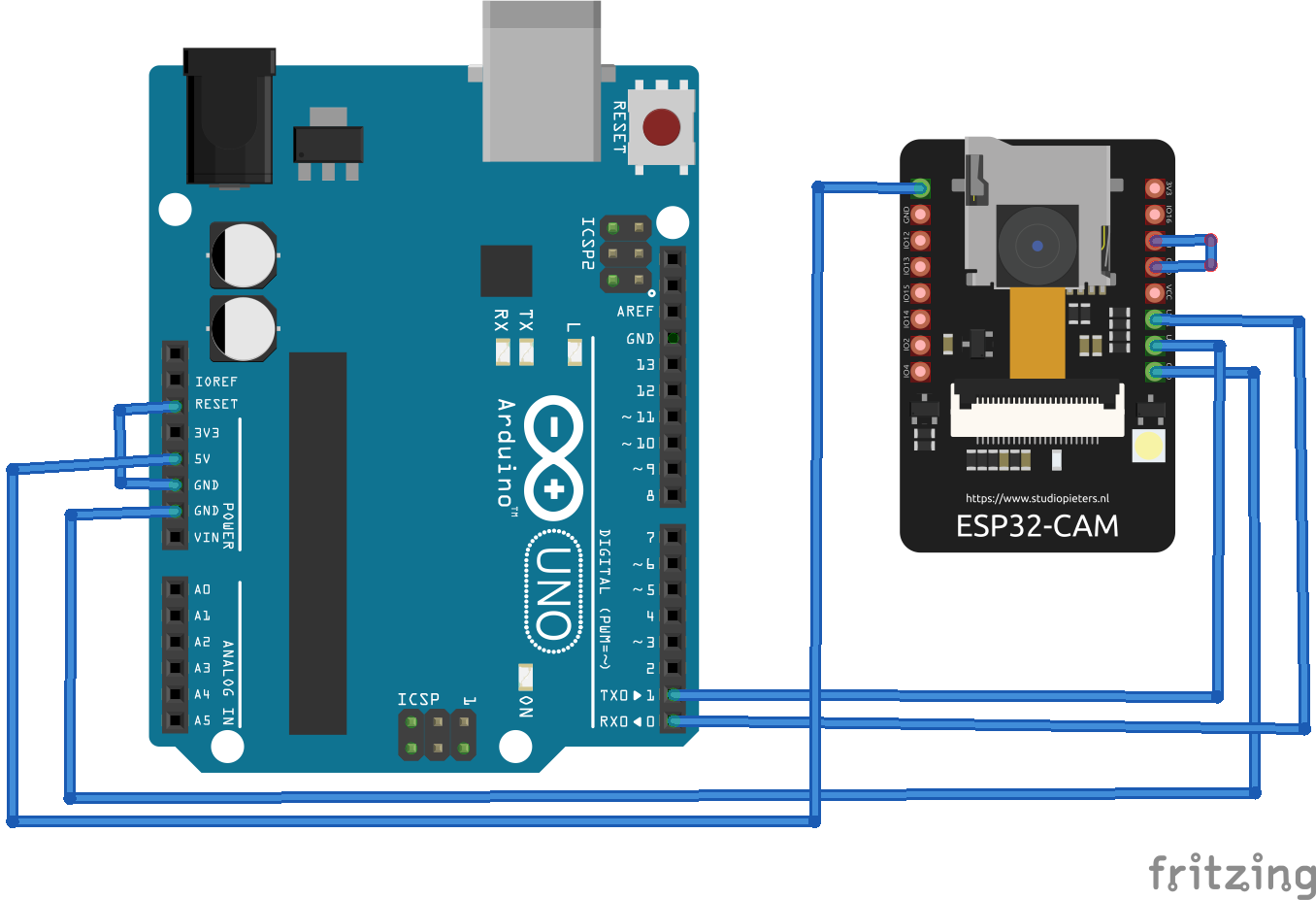
Next, is a circuit diagram that demonstrates the connections between Arduino and the ESP32-CAM. It relates to the camera after the sketch uploaded. Note that the connection between ESP32-CAM’d GPIO0 and ground pins is removed.
The sketch

Uploading the sketch

Complete the circuit connections as instructed to properly upload the code. Remember to connect ESP32-CAM’s GPIO0 with its ground pin to do so.

Now, connect Arduino with a computer using a USB cable. Select the “ESP32 Wrover Module” as the board to use, and set the following parameters under “Tools.”
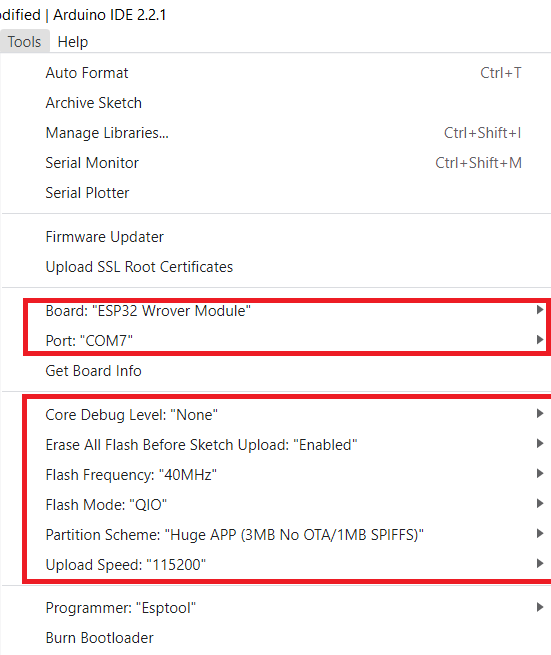
Compile and upload the sketch by clicking on Arduino IDE’s “Upload” button. After the sketch is uploaded, remove the connection between ESP32-CAM’s GPIO0 and ground pins via Arduino.

Format a MicroSD card to the “FAT32 file system” using a suitable SD card formatter. Then, insert the card in ESP32-CAM’s MicroSD card slot. The development board should be ready to capture still images.

How it works

In the firmware code that’s uploaded to the ESP32-CAM, the board is programmed to initialize the camera module and take a picture. This captured image is instantly stored in the attached MicroSD card. The complete code runs in the setup() function and only functions when the module’s reset button is pressed. After capturing a new image, the module goes in idle mode as the loop() function in the firmware has no code.

The code

The sketch begins with importing the libraries required for operating the module. like esp_camera.h,Arduino.h etc. The libraries FS.h and SD_MMC.h are required for working with the SD card. The libraries soc/soc.h and soc/rtc_cntl_reg.h are required for handling the brownout problem. The library driver/rtc_io.h is required for handling RTC input and outputs.

The EEPROM.h is save data in the flash memory. The ESP32-CAM has an EEPROM of size 4 kilobytes available. Out of that storage, one byte is defined as a constant to denote the maximum number of images to be taken. One byte allows up to 256 pictures.

The sketch begins by importing the necessary libraries for operating the ESP32-CAM module, such as esp_camera.h and Arduino.h. Additional libraries, including FS.h and SD_MMC.h, are required to work with the SD card. The soc/soc.h and soc/rtc_cntl_reg.h libraries address the brownout detection problem. The driver/rtc_io.h library manages the RTC input and output functionality, and EEPROM.h is included to enable data storage in the flash memory.

The ESP32-CAM features a four-kilobyte EEPROM, with one byte designated as a constant to define the maximum number of images that can be stored — allowing up to 256 pictures.

Constants for the pin configuration of the ESP32-CAM module are declared, followed by the initialization of a variable to store the image count, which is set to “0.”

In the setup function, the camera module is configured by defining its various settings. If PSRAM is available, specific settings are defined. Otherwise, alternative settings are applied. Both the camera and the MicroSD card are initialized. The subsequent code in the sketch is responsible for capturing and saving images to the MicroSD card.

This code in the sketch captures an image:

  fb = esp_camera_fb_get();  
  if(!fb) {
    Serial.println(“Camera capture failed”);
    return;
  }

The EEPROM is initialized to retrieve the last stored picture number, and that number variable is incremented by “1” for the new capture. A storage path is defined on the MicroSD card, and the captured picture is saved at this specified location.

To maintain continuity, the updated picture number is written back to the EEPROM, allowing the system to track the total number of pictures taken.

To provide user feedback, the onboard LED flashes briefly to indicate that the picture has been successfully captured and stored. Once the process is complete, the ESP32-CAM module enters deep sleep mode to conserve power until the next activation.

All of the code is written in the setup() function, so it runs only once when the reset button is pressed. The development board remains in deep sleep state at all other times. The captured pictures can be viewed and retrieved from the MicroSD card module.

The results

The development board captures and stores pictures when the reset button is pressed, as shown in the demonstration video.

Video

https://www.engineersgarage.com/wp-content/uploads/2025/01/P70-DV-1.mp4

The pictures are retrieved by inserting the MicroSD card in your computer.
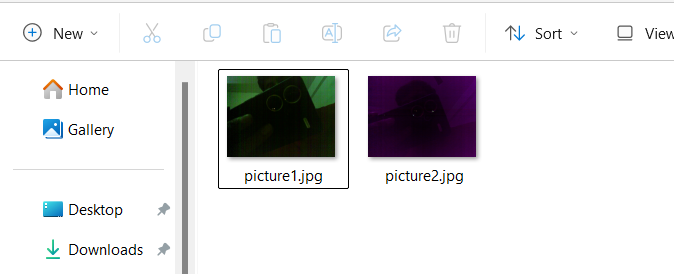
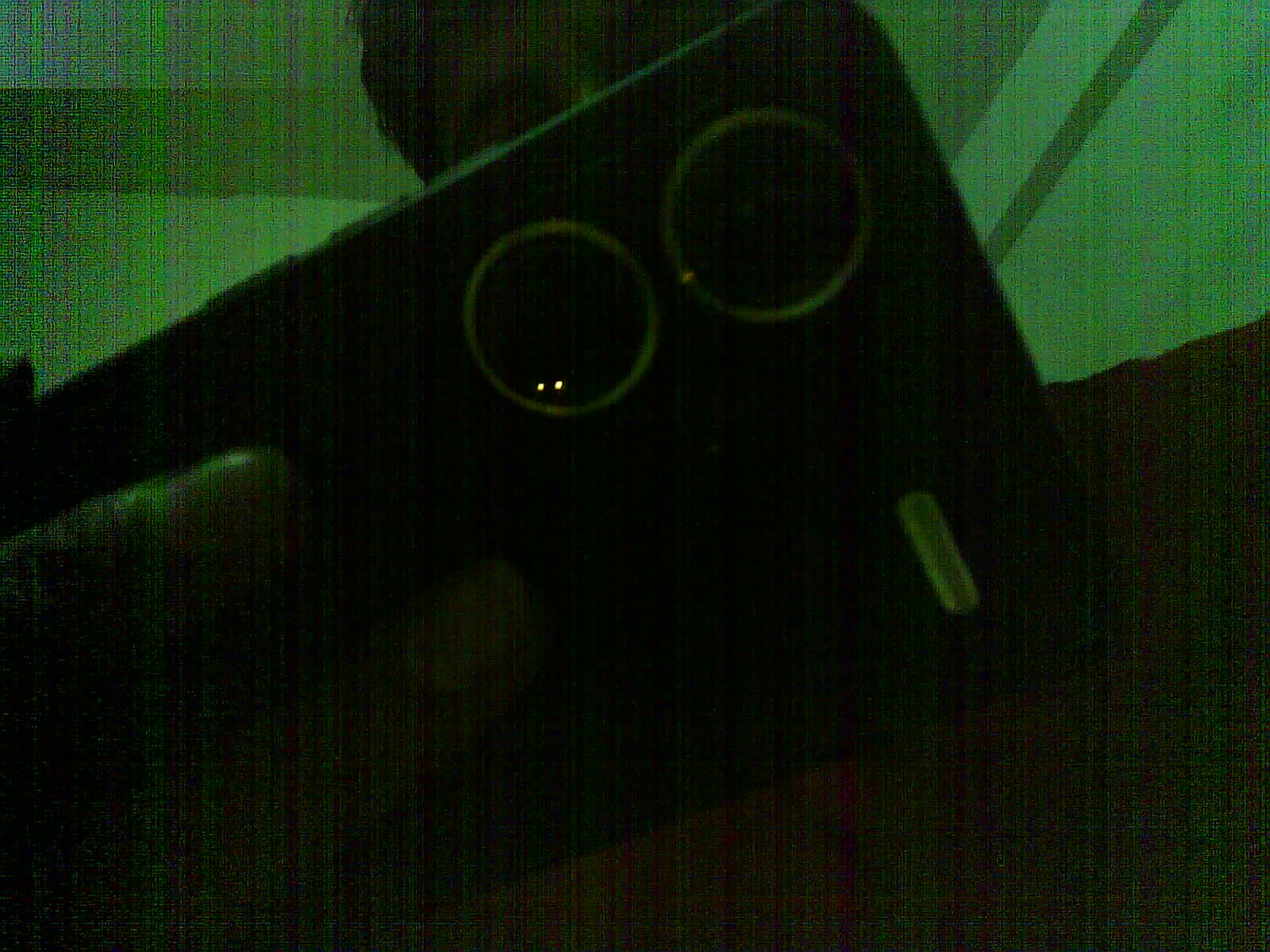
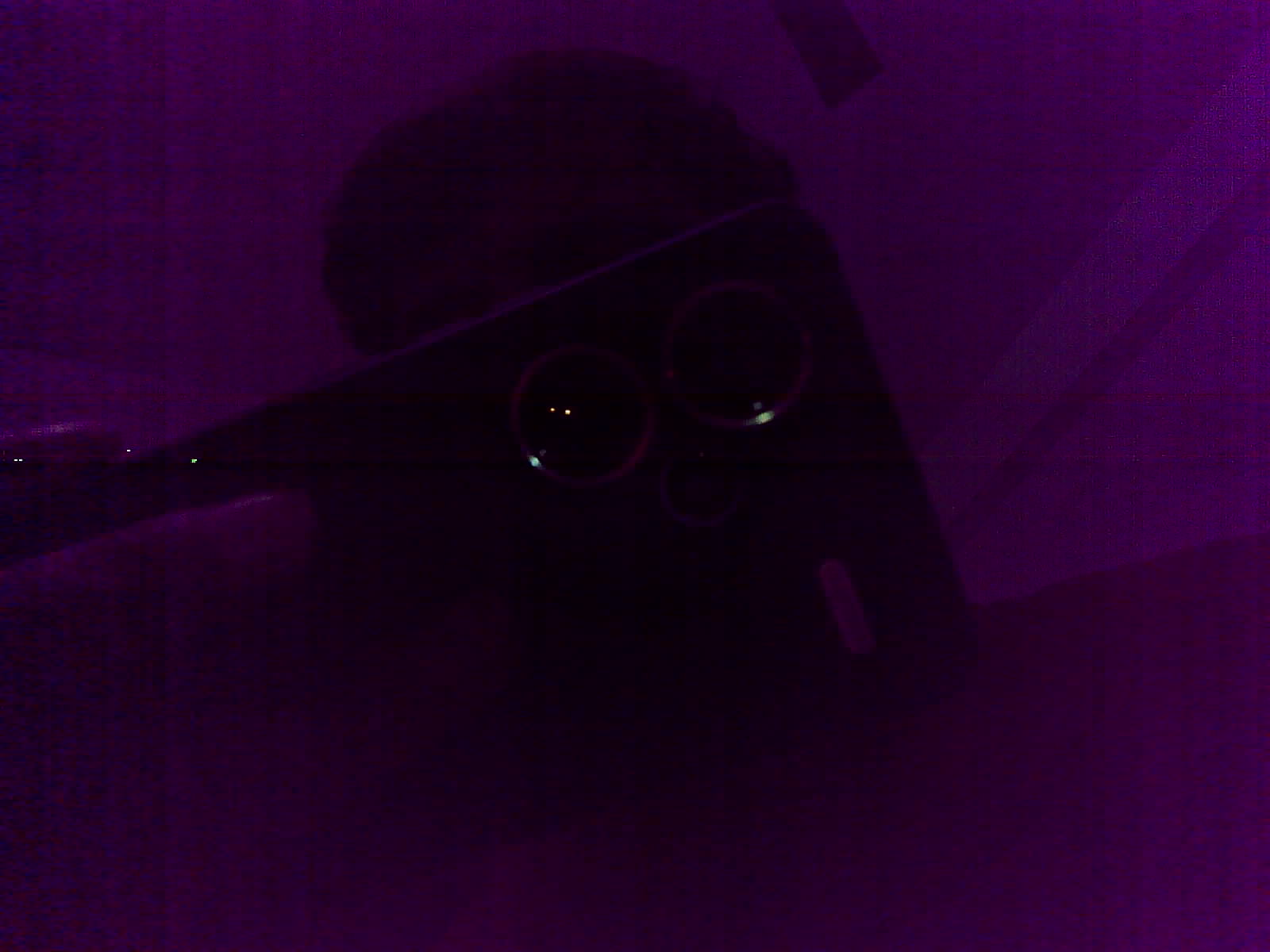
Some of the pictures we captured from the ESP32-CAM are as follows.
You may also like:

  • What are the most practical and useful modern spy gadgets?

  • What is CCTV and how does it work?

  • The top IoT projects for enhancing everyday life

  • How ESP32 boards can communicate without a router or the…

  • Arduino compatible coding 01: Arduino MCU family

  • How to use the Raspberry Pi camera with OpenCV

  • How to troubleshoot common ESP32-CAM problems

  • How to build a facial recognition system using ESP32-CAM

  • How to manage data on ESP32 for IoT projects

Filed Under: Electronic Projects, Video
Tagged With: Arduino, electronicproject, ESP32, esp32-cam, images, video
 

Next Article

← Previous Article
Next Article →

Questions related to this article?
👉Ask and discuss on Electro-Tech-Online.com and EDAboard.com forums.


Tell Us What You Think!! Cancel reply

You must be logged in to post a comment.

EE TECH TOOLBOX

“ee
Tech Toolbox: Internet of Things
Explore practical strategies for minimizing attack surfaces, managing memory efficiently, and securing firmware. Download now to ensure your IoT implementations remain secure, efficient, and future-ready.

EE Learning Center

EE Learning Center
“engineers
EXPAND YOUR KNOWLEDGE AND STAY CONNECTED
Get the latest info on technologies, tools and strategies for EE professionals.

HAVE A QUESTION?

Have a technical question about an article or other engineering questions? Check out our engineering forums EDABoard.com and Electro-Tech-Online.com where you can get those questions asked and answered by your peers!


RSS EDABOARD.com Discussions

  • Reducing "shoot-through" in offline Full Bridge SMPS?
  • High Side current sensing
  • How to simulate power electronics converter in PSpice?
  • Voltage mode pushpull is a nonsense SMPS?
  • Layout IRN reduction in Comparator

RSS Electro-Tech-Online.com Discussions

  • Back to the old BASIC days
  • Parts required for a personal project
  • PIC KIT 3 not able to program dsPIC
  • Failure of polypropylene motor-run capacitors
  • Siemens large industrial PLC parts

Featured – RPi Python Programming (27 Part)

  • RPi Python Programming 21: The SIM900A AT commands
  • RPi Python Programming 22: Calls & SMS using a SIM900A GSM-GPRS modem
  • RPi Python Programming 23: Interfacing a NEO-6MV2 GPS module with Raspberry Pi
  • RPi Python Programming 24: I2C explained
  • RPi Python Programming 25 – Synchronous serial communication in Raspberry Pi using I2C protocol
  • RPi Python Programming 26 – Interfacing ADXL345 accelerometer sensor with Raspberry Pi

Recent Articles

  • What is AWS IoT Core and when should you use it?
  • AC-DC power supply extends voltage range to 800 V DC
  • Infineon’s inductive sensor integrates coil system driver, signal conditioning circuits and DSP
  • Arm Cortex-M23 MCU delivers 87.5 µA/MHz active mode
  • STMicroelectronics releases automotive amplifiers with in-play open-load detection

EE ENGINEERING TRAINING DAYS

engineering

Submit a Guest Post

submit a guest post
Engineers Garage
  • Analog IC TIps
  • Connector Tips
  • Battery Power Tips
  • DesignFast
  • EDABoard Forums
  • EE World Online
  • Electro-Tech-Online Forums
  • EV Engineering
  • Microcontroller Tips
  • Power Electronic Tips
  • Sensor Tips
  • Test and Measurement Tips
  • 5G Technology World
  • Subscribe to our newsletter
  • About Us
  • Contact Us
  • Advertise

Copyright © 2025 WTWH Media LLC. All Rights Reserved. The material on this site may not be reproduced, distributed, transmitted, cached or otherwise used, except with the prior written permission of WTWH Media
Privacy Policy

Search Engineers Garage

  • Electronic Projects & Tutorials
    • Electronic Projects
      • Arduino Projects
      • AVR
      • Raspberry pi
      • ESP8266
      • BeagleBone
      • 8051 Microcontroller
      • ARM
      • PIC Microcontroller
      • STM32
    • Tutorials
      • Audio Electronics
      • Battery Management
      • Brainwave
      • Electric Vehicles
      • EMI/EMC/RFI
      • Hardware Filters
      • IoT tutorials
      • Power Tutorials
      • Python
      • Sensors
      • USB
      • VHDL
    • Circuit Design
    • Project Videos
    • Components
  • Articles
    • Tech Articles
    • Insight
    • Invention Stories
    • How to
    • What Is
  • News
    • Electronic Product News
    • Business News
    • Company/Start-up News
    • DIY Reviews
    • Guest Post
  • Forums
    • EDABoard.com
    • Electro-Tech-Online
    • EG Forum Archive
  • DigiKey Store
    • Cables, Wires
    • Connectors, Interconnect
    • Discrete
    • Electromechanical
    • Embedded Computers
    • Enclosures, Hardware, Office
    • Integrated Circuits (ICs)
    • Isolators
    • LED/Optoelectronics
    • Passive
    • Power, Circuit Protection
    • Programmers
    • RF, Wireless
    • Semiconductors
    • Sensors, Transducers
    • Test Products
    • Tools
  • Learn
    • eBooks/Tech Tips
    • Design Guides
    • Learning Center
    • Tech Toolboxes
    • Webinars & Digital Events
  • Resources
    • Digital Issues
    • EE Training Days
    • LEAP Awards
    • Podcasts
    • Webinars / Digital Events
    • White Papers
    • Engineering Diversity & Inclusion
    • DesignFast
  • Guest Post Guidelines
  • Advertise
  • Subscribe