Engineers Garage

  • Electronic Projects & Tutorials
    • Electronic Projects
      • Arduino Projects
      • AVR
      • Raspberry pi
      • ESP8266
      • BeagleBone
      • 8051 Microcontroller
      • ARM
      • PIC Microcontroller
      • STM32
    • Tutorials
      • Audio Electronics
      • Battery Management
      • Brainwave
      • Electric Vehicles
      • EMI/EMC/RFI
      • Hardware Filters
      • IoT tutorials
      • Power Tutorials
      • Python
      • Sensors
      • USB
      • VHDL
    • Circuit Design
    • Project Videos
    • Components
  • Articles
    • Tech Articles
    • Insight
    • Invention Stories
    • How to
    • What Is
  • News
    • Electronic Product News
    • Business News
    • Company/Start-up News
    • DIY Reviews
    • Guest Post
  • Forums
    • EDABoard.com
    • Electro-Tech-Online
    • EG Forum Archive
  • DigiKey Store
    • Cables, Wires
    • Connectors, Interconnect
    • Discrete
    • Electromechanical
    • Embedded Computers
    • Enclosures, Hardware, Office
    • Integrated Circuits (ICs)
    • Isolators
    • LED/Optoelectronics
    • Passive
    • Power, Circuit Protection
    • Programmers
    • RF, Wireless
    • Semiconductors
    • Sensors, Transducers
    • Test Products
    • Tools
  • Learn
    • eBooks/Tech Tips
    • Design Guides
    • Learning Center
    • Tech Toolboxes
    • Webinars & Digital Events
  • Resources
    • Digital Issues
    • EE Training Days
    • LEAP Awards
    • Podcasts
    • Webinars / Digital Events
    • White Papers
    • Engineering Diversity & Inclusion
    • DesignFast
  • Guest Post Guidelines
  • Advertise
  • Subscribe

Raspberry Pi to Light a Led using Voice Control- (Part 2/12)

By Prabakaran P.M May 23, 2021

Now voice control is not only limited to high end devices such as smart phones or iPhones. The Raspberry Pi, which is an open source hardware and completely customizable offers you the same. Plus, it's cheap! You can customize it to play music, open gmail or maybe tell you some jokes.

Here is a simple yet interesting example on how to customize your Raspberry Pi to light an led using voice control. In this tutorial we will learn how to install Voice Command, and making the configuration to turn a Led on and off.


Prerequisites & Equipment:

You will need the following:

  1. A Raspberry Pi Model B or greater.

  2. A USB WiFi Adapter (Edimax – Wireless 802.11b/g/n nano USB adapter is used here).

  3. A USB webcam with microphone / USB microphone (Logitech USB Webcam is used here).

  4. An SD Card flashed with the Raspbian OS (Here is a guide if you need)

  5. Access to the Raspberry either via a keyboard and a monitor or remotely.

Here you cannot use microphones since Raspberry Pi doesn’t include a sound card. So use either USB microphone or a USB Webcam with an inbuilt microphone.

Working Principle:

The software used in this tutorial uses Google Voice and speech APIs. The voice signals from the user spelled is captured by the microphone of the USB webcam. This sound signals are then converted to text by using Google voice API. The text is then compared with the other previously defined commands in the command configuration file. If there is a match corresponding commands are executed.

Initializations:

First, we have to check whether your microphone or webcam is detected by the Raspberry Pi and the microphone volumes are high. First step is to check your webcam or microphone is listed using the command “lsusb“.
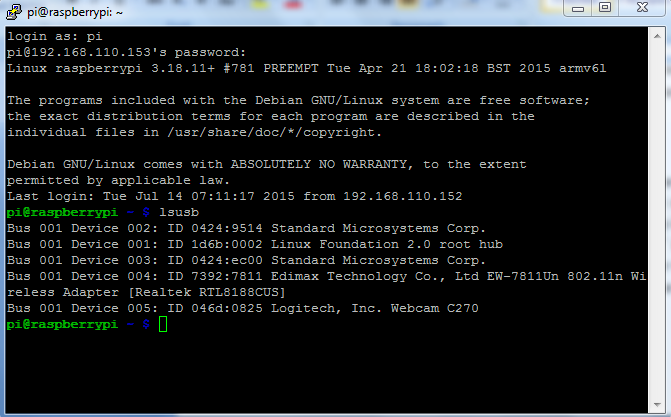
Checking Webcam or Microphone Detected by raspberry Pi

Fig. 1: Checking Webcam Or Microphone Detected By Raspberry Pi

Next step is to set the microphone recording volume high. To do this, enter the command “alsamixer” in the terminal. A neat graphical interface screen shows up, press the up or down arrow keys to set the volume. Press F6 (all), then select the webcam or microphone from the list. Once again use the up arrow key to set the recording volume to high.
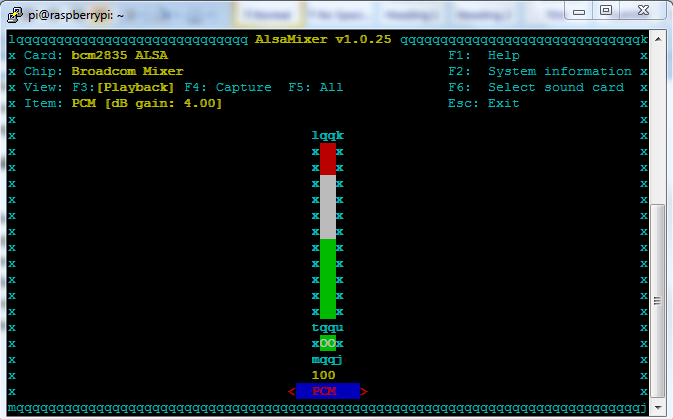
Setting Microphone Volume High

Fig. 2: Setting Microphone Volume High

Connect a black female to male jumper to physical pin 6, a ground pin and connect a red jumper to physical pin 16 of your Pi.
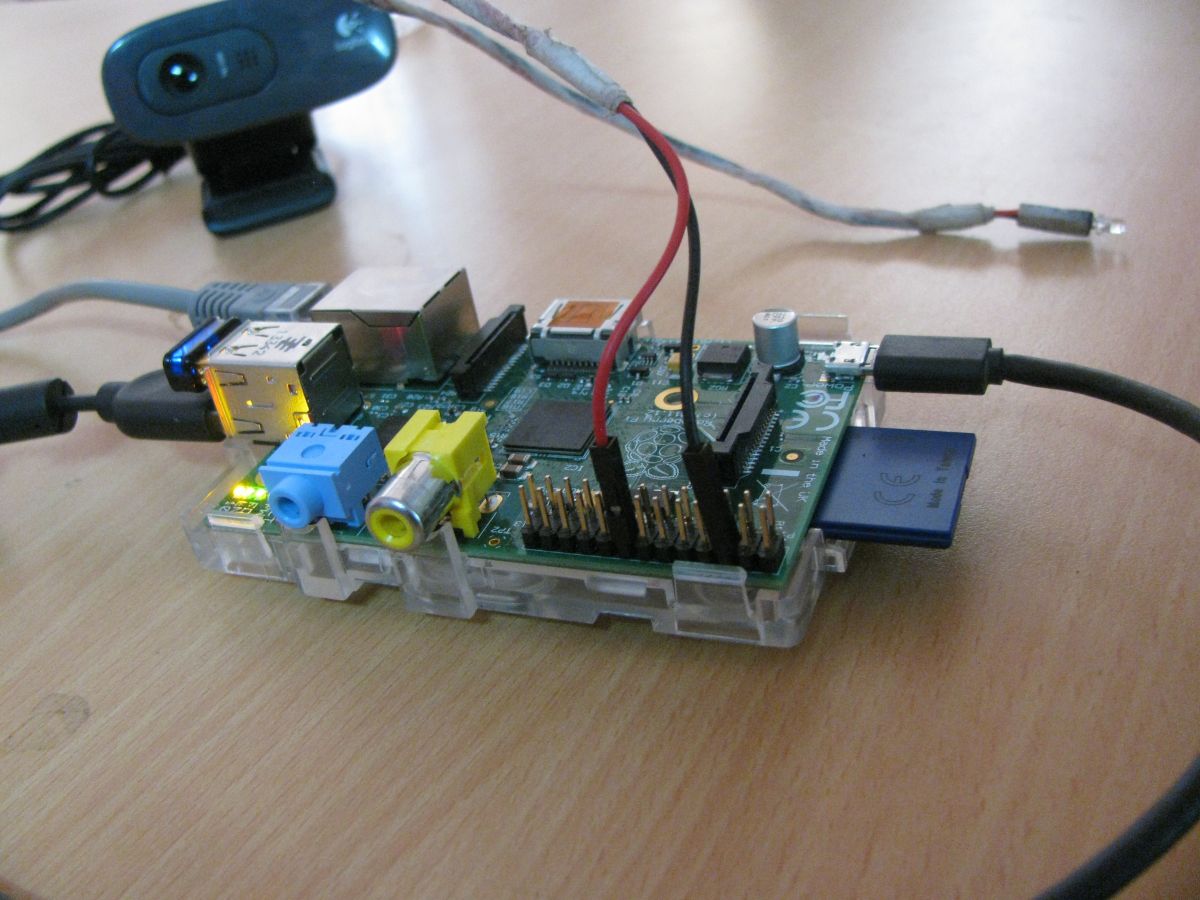
Female and Male Jumper Connections with Pi

Fig. 3: Female And Male Jumper Connections With Pi

The Wiring Pi project is used here to switch the GPIO pins high and low. Run the following commands to download and install Wiring Pi.

sudo apt-get install git-core

git clone git://git.drogon.net/wiringPi

cd wiringPi

./build
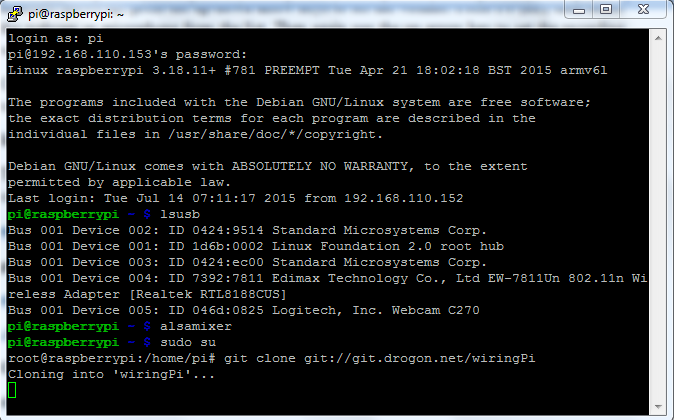
Downloading Wiring Pi to Raspberry Pi

Fig. 4: Downloading Wiring Pi To Raspberry Pi
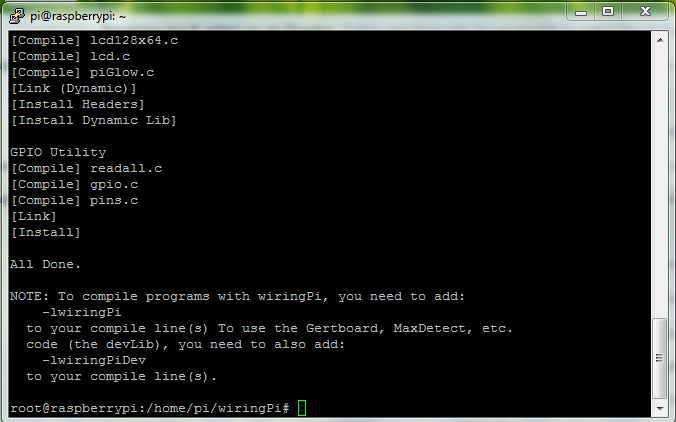
Installing Wiring Pi on Raspberry Pi

Fig. 5: Installing Wiring Pi On Raspberry Pi

Create the following script as a file named ‘led’:

#!/bin/bash

if [ $# > 1 ]

then

/usr/local/bin/gpio mode 4 out

if [[ “$1” = “on” ]]

then

/usr/local/bin/gpio write 4 on

fi

if [[ “$1” = “off” ]]

then

/usr/local/bin/gpio write 4 off

fi

fi

Set the script to be executable with the following command:

chmod u+x led

Now this command should ON the LED connected to the pin. ( Pin number description can be found in Wiring Pi page.

./led on

For turning OFF this command can be used

./led off

Installing the voice recognition software for Raspberry Pi:

Voice Command installs as a part of collection of packages. We, only need the dependencies and voice command components for this tutorial. When the setup script runs, it will ask your wish to install several packages you can only say yes to dependencies and voice command.

Execute the commands below:

git clone git://github.com/StevenHickson/PiAUISuite.git

cd PiAUISuite/Install/

./InstallAUISuite.sh
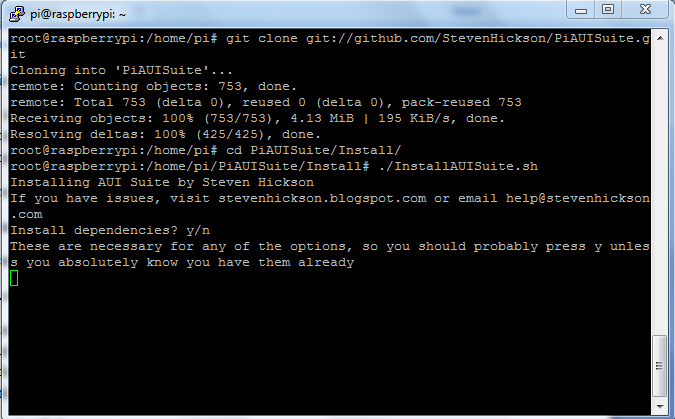
Installing Voice Recognition Software For Raspberry Pi

Fig. 6: Installing Voice Recognition Software For Raspberry Pi

After Voice Command installs, it will prompt you to setup. Choose yes to allow the install script to auto setup. When the setup is complete it will prompt you to edit the config file. Press Enter to edit the file and see the next section for configuration. Add the following line to the config file, save, and exit.

light==/home/pi/scripts/led …

The above line means that, when you say light on or light off Voice Command will execute the script /home/pi/led with passing the argument on or off. This is similar to the result as when you ran the script manually.

Use the below command to launch Voice Command. The -c means to run continuously, -k pi sets the name prompt you will say to get the Raspberry Pi’s attention. The -v causes the program to verify the prompt before going into a voice recognition mode. The -i causes voice command to only process explicit commands listed in the config file. Finally, the -b0 argument forces voice command to not use filler text before its response.

voicecommand -c -k pi -v -b0 -i

Execute the above command

Say clearly PI and wait for the response “Yes Sir”

Say clearly light on. The LED should turn on

Say clearly light off. The LED should turn off

Congratulations! You’ve successfully voice controlled your lamp with your Raspberry Pi.

You may also like:


  • What are different types of industrial robots?

  • What are LoRa gateways and what types are available?

  • How does LoRa modulation enable long-range communication?

  • What are the different types of EV charging connectors?

  • What types of motors are used in electric vehicles?

  • What is Wireless Electric Vehicle Charging System (WEVCS)?

Circuit Diagrams

Circuit-Diagram-Voice-control


Filed Under: Electronic Projects, Raspberry pi, Tutorials


Next Article

← Previous Article
Next Article →

Questions related to this article?
👉Ask and discuss on EDAboard.com and Electro-Tech-Online.com forums.


Tell Us What You Think!! Cancel reply

You must be logged in to post a comment.

EE TECH TOOLBOX

“ee
Tech Toolbox: Internet of Things
Explore practical strategies for minimizing attack surfaces, managing memory efficiently, and securing firmware. Download now to ensure your IoT implementations remain secure, efficient, and future-ready.

EE Learning Center

EE Learning Center
“engineers
EXPAND YOUR KNOWLEDGE AND STAY CONNECTED
Get the latest info on technologies, tools and strategies for EE professionals.

HAVE A QUESTION?

Have a technical question about an article or other engineering questions? Check out our engineering forums EDABoard.com and Electro-Tech-Online.com where you can get those questions asked and answered by your peers!


RSS EDABOARD.com Discussions

  • Reducing "shoot-through" in offline Full Bridge SMPS?
  • High Side current sensing
  • How to simulate power electronics converter in PSpice?
  • Voltage mode pushpull is a nonsense SMPS?
  • Layout IRN reduction in Comparator

RSS Electro-Tech-Online.com Discussions

  • Back to the old BASIC days
  • Parts required for a personal project
  • PIC KIT 3 not able to program dsPIC
  • Failure of polypropylene motor-run capacitors
  • Siemens large industrial PLC parts

Featured – RPi Python Programming (27 Part)

  • RPi Python Programming 21: The SIM900A AT commands
  • RPi Python Programming 22: Calls & SMS using a SIM900A GSM-GPRS modem
  • RPi Python Programming 23: Interfacing a NEO-6MV2 GPS module with Raspberry Pi
  • RPi Python Programming 24: I2C explained
  • RPi Python Programming 25 – Synchronous serial communication in Raspberry Pi using I2C protocol
  • RPi Python Programming 26 – Interfacing ADXL345 accelerometer sensor with Raspberry Pi

Recent Articles

  • What is AWS IoT Core and when should you use it?
  • AC-DC power supply extends voltage range to 800 V DC
  • Infineon’s inductive sensor integrates coil system driver, signal conditioning circuits and DSP
  • Arm Cortex-M23 MCU delivers 87.5 µA/MHz active mode
  • STMicroelectronics releases automotive amplifiers with in-play open-load detection

EE ENGINEERING TRAINING DAYS

engineering

Submit a Guest Post

submit a guest post
Engineers Garage
  • Analog IC TIps
  • Connector Tips
  • Battery Power Tips
  • DesignFast
  • EDABoard Forums
  • EE World Online
  • Electro-Tech-Online Forums
  • EV Engineering
  • Microcontroller Tips
  • Power Electronic Tips
  • Sensor Tips
  • Test and Measurement Tips
  • 5G Technology World
  • Subscribe to our newsletter
  • About Us
  • Contact Us
  • Advertise

Copyright © 2025 WTWH Media LLC. All Rights Reserved. The material on this site may not be reproduced, distributed, transmitted, cached or otherwise used, except with the prior written permission of WTWH Media
Privacy Policy

Search Engineers Garage

  • Electronic Projects & Tutorials
    • Electronic Projects
      • Arduino Projects
      • AVR
      • Raspberry pi
      • ESP8266
      • BeagleBone
      • 8051 Microcontroller
      • ARM
      • PIC Microcontroller
      • STM32
    • Tutorials
      • Audio Electronics
      • Battery Management
      • Brainwave
      • Electric Vehicles
      • EMI/EMC/RFI
      • Hardware Filters
      • IoT tutorials
      • Power Tutorials
      • Python
      • Sensors
      • USB
      • VHDL
    • Circuit Design
    • Project Videos
    • Components
  • Articles
    • Tech Articles
    • Insight
    • Invention Stories
    • How to
    • What Is
  • News
    • Electronic Product News
    • Business News
    • Company/Start-up News
    • DIY Reviews
    • Guest Post
  • Forums
    • EDABoard.com
    • Electro-Tech-Online
    • EG Forum Archive
  • DigiKey Store
    • Cables, Wires
    • Connectors, Interconnect
    • Discrete
    • Electromechanical
    • Embedded Computers
    • Enclosures, Hardware, Office
    • Integrated Circuits (ICs)
    • Isolators
    • LED/Optoelectronics
    • Passive
    • Power, Circuit Protection
    • Programmers
    • RF, Wireless
    • Semiconductors
    • Sensors, Transducers
    • Test Products
    • Tools
  • Learn
    • eBooks/Tech Tips
    • Design Guides
    • Learning Center
    • Tech Toolboxes
    • Webinars & Digital Events
  • Resources
    • Digital Issues
    • EE Training Days
    • LEAP Awards
    • Podcasts
    • Webinars / Digital Events
    • White Papers
    • Engineering Diversity & Inclusion
    • DesignFast
  • Guest Post Guidelines
  • Advertise
  • Subscribe